
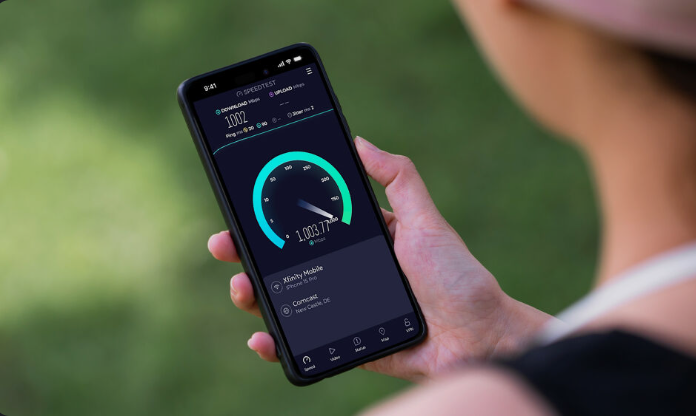
A reliable internet connection is essential for working from home, attending online classes, streaming movies, playing online games, video calling, and browsing the web. When your connection becomes slow or unstable, even simple online activities can become frustrating. If you use Comcast Xfinity internet, running an internet speed test is one of the easiest ways to understand how well your connection is performing.
An internet speed test for Comcast measures important connection details, including download speed, upload speed, latency, and sometimes jitter and packet loss. These results help you determine whether your internet service is delivering the performance you expect.
Whether you want to check your Xfinity connection, troubleshoot buffering, compare your actual speed with your plan, or improve your home Wi-Fi, understanding speed-test results can help you make better decisions.
This guide explains how to test Comcast internet speed, what the results mean, why your connection may be slow, and what you can do to improve your internet performance.
What Is a Comcast Internet Speed Test?
A Comcast internet speed test is a diagnostic test that measures the performance of your internet connection. Comcast provides internet service under the Xfinity brand, and customers can use its online speed-test service to check how their connection is performing.
A speed test typically measures four important factors:
- Download speed: How quickly your device receives information from the internet.
- Upload speed: How quickly your device sends information to the internet.
- Latency or ping: How long it takes data to travel between your device and a test server.
- Jitter: How much latency changes over time.
These measurements can help identify whether your internet connection is suitable for activities such as streaming, video conferencing, online gaming, and downloading large files.
For example, if a video takes a long time to load, your download speed may be insufficient. If people complain that your voice sounds unclear during a video meeting, your upload speed, latency, or connection stability may be contributing to the problem.
How to Run an Internet Speed Test on Comcast
Testing your Comcast internet speed is straightforward. You can use the official Xfinity speed-test page or another reputable testing service.
Step 1: Connect to Your Xfinity Network
Connect your computer, smartphone, or tablet to your Comcast Xfinity internet connection.
For the most accurate measurement, connect a computer directly to your router or gateway using an Ethernet cable. If you use Wi-Fi, stay reasonably close to the router and avoid testing from a room with a weak signal.
Step 2: Open a Speed-Test Website
Visit the official Xfinity speed-test page:
You can also use a reputable independent service such as Ookla Speedtest:
Using more than one testing service can help you determine whether an unusual result is caused by the test server or by your connection.
Step 3: Start the Test
Select the option to begin the speed test. The website will connect to a testing server and measure your internet performance.
Most tests take less than a minute, although the exact time can vary.
Step 4: Review Your Results
After the test finishes, review your download speed, upload speed, and latency.
Compare these results with the advertised speed of your Xfinity internet plan. Remember that advertised plan speeds and actual device speeds may differ, particularly when testing over Wi-Fi.
Step 5: Repeat the Test
Run the test two or three times. If possible, test at different times of the day.
Repeated measurements can reveal whether slow performance is temporary or part of a recurring pattern.
Understanding Comcast Internet Speed-Test Results
A speed test provides several measurements. Understanding them makes it easier to identify connection problems.
1. Download Speed
Download speed measures how quickly data travels from the internet to your device. It is usually measured in megabits per second (Mbps) or gigabits per second (Gbps).
Download speed affects activities such as:
- Watching movies and television online
- Downloading applications and files
- Browsing websites
- Loading photos and videos
- Streaming music
- Updating games and software
A higher download speed generally allows multiple devices to use bandwidth more comfortably.
For example, a household where several people stream videos, attend online meetings, and download files simultaneously may benefit from a faster internet plan than a household that mainly browses websites and checks email.
2. Upload Speed
Upload speed measures how quickly your device sends data to the internet.
It matters for activities such as:
- Uploading photos and videos
- Sending large email attachments
- Participating in video conferences
- Live streaming
- Backing up files to cloud storage
- Sharing documents
A connection can have a high download speed but a comparatively low upload speed. This is not necessarily a fault: internet plans can provide different download and upload performance.
If you regularly upload large files or participate in video meetings, pay attention to your upload results as well as your download speed.
3. Ping or Latency
Ping, commonly measured in milliseconds (ms), indicates how long it takes for a small amount of data to travel to a server and return.
Lower latency is generally better, especially for activities that require quick responses.
Latency can affect:
- Online multiplayer gaming
- Video calls
- Remote desktop connections
- Interactive applications
- Voice communication
A connection with high download speed can still feel unresponsive if its latency is consistently high.
4. Jitter
Jitter describes variation in latency over time. A stable connection generally has low jitter.
High jitter can cause problems during real-time activities, including:
- Choppy video calls
- Distorted voice communication
- Inconsistent gaming performance
- Audio delays
If your speed test reports jitter, compare results across multiple tests rather than relying on one measurement.
5. Packet Loss
Packet loss occurs when some data packets fail to reach their destination. Even a small amount can affect applications that depend on continuous communication.
Packet loss may be associated with wireless interference, network congestion, faulty equipment, or problems elsewhere in the network.
Not every speed-test website reports packet loss, but it can be useful when diagnosing an unstable connection.
What Is a Good Comcast Internet Speed?
A good internet speed depends on how many people use your connection and what they do online. There is no single speed that is ideal for every household.
The following table provides general guidance rather than a guarantee of performance.
| Online activity | General speed guidance |
|---|---|
| Email and basic browsing | 5–10 Mbps |
| HD video streaming | Around 5–10 Mbps per stream |
| 4K video streaming | Around 15–25 Mbps per stream |
| Video conferencing | Around 5–10 Mbps per active user |
| Online gaming | Stable connection and low latency are especially important |
| Large downloads | Higher download speeds reduce waiting time |
| Multiple connected devices | More bandwidth may be needed |
These are approximate planning figures. Actual requirements vary by application, video quality, device, and the number of simultaneous users.
For a family with several connected devices, a faster plan may provide a more comfortable experience. However, buying a higher-speed plan will not automatically solve problems caused by weak Wi-Fi coverage, faulty equipment, or network interference.
Why Is My Comcast Internet Speed Slow?
If your Comcast speed test shows lower-than-expected results, several factors may be responsible.
1. Weak Wi-Fi Signal
Wi-Fi performance can decrease when your device is far from the router or separated from it by thick walls, floors, furniture, and other obstacles.
A connection that works well in the living room may perform poorly in a bedroom or upstairs office.
What to do: Move closer to the router and run another test. If performance improves significantly, Wi-Fi coverage may be the problem.
2. Too Many Connected Devices
Smartphones, laptops, televisions, gaming consoles, security cameras, and smart-home devices can all use your home network.
When several devices are downloading or streaming simultaneously, they may compete for available bandwidth.
What to do: Pause unnecessary downloads and streaming sessions, then repeat the test. Check whether a particular device or application is consuming unusually high bandwidth.
3. Network Congestion
Internet performance can vary during busy periods. If many users are online at the same time, network congestion may affect your connection.
You may notice that your internet works well early in the morning but becomes slower in the evening.
What to do: Test your connection at different times of day. If slowdowns happen regularly, record the results and contact Xfinity support.
4. Outdated Router or Gateway
Older networking equipment may not support the performance, Wi-Fi standards, or features needed by a newer internet plan.
A device may also develop faults or become unstable over time.
What to do: Check whether your equipment is compatible with your current Xfinity plan. Review Xfinity’s equipment guidance before purchasing a replacement.
5. Background Downloads and Updates
Your computer, phone, gaming console, or smart television may download updates without making it obvious.
Cloud backups and file synchronization can also use bandwidth in the background.
What to do: Pause large downloads, backups, and software updates while testing your connection.
6. Damaged Cables or Loose Connections
A loose Ethernet cable, damaged coaxial cable, or poorly connected power cable can cause connection problems.
What to do: Check visible connections and make sure cables are firmly attached. Avoid bending or damaging coaxial cables.
7. VPN or Security Software
A VPN routes your internet traffic through another server. Depending on the VPN service, server location, and network conditions, it may reduce measured speed or increase latency.
What to do: If it is safe and appropriate, temporarily disconnect your VPN and run another test. Do not disable essential security protection just to improve a speed-test result.
How to Improve Comcast Internet Speed
If your Xfinity internet is slower than expected, try these practical steps before changing your plan.
1. Restart Your Router or Gateway
Restarting your networking equipment can resolve temporary connection issues.
Unplug the power cable, wait briefly, and reconnect it. Allow the equipment to finish restarting before testing again.
If you use an Xfinity gateway, follow the manufacturer’s or Xfinity’s instructions for restarting it.
2. Use an Ethernet Connection
A wired Ethernet connection is often more consistent than Wi-Fi.
Connect your computer directly to your router or gateway with an Ethernet cable and run the test again.
If your wired result is substantially better than your Wi-Fi result, the issue may involve wireless coverage, interference, or router placement.
3. Place Your Router in a Better Location
Router placement can have a significant effect on Wi-Fi performance.
For better coverage:
- Place the router in a central location.
- Keep it elevated and in an open area.
- Avoid placing it inside cabinets.
- Keep it away from large metal objects.
- Avoid placing it next to devices that may cause interference.
- Position external antennas according to the equipment instructions.
A centrally located router can provide more consistent coverage across your home.
4. Reduce Unnecessary Network Activity
Pause large downloads, cloud backups, and streaming sessions when checking your internet speed.
If your router provides device-management or traffic-monitoring features, review which devices are using the most bandwidth.
5. Check Your Wi-Fi Band
Many modern routers support both 2.4 GHz and 5 GHz Wi-Fi bands, and some newer equipment supports additional bands.
The 2.4 GHz band generally offers better range but may experience more interference. The 5 GHz band can provide faster performance over shorter distances, depending on the environment and device.
Choose the band that works best for your location and equipment.
6. Update Your Equipment
Check for available firmware updates and make sure your router or gateway is supported.
If you use equipment supplied by Xfinity, review the provider’s instructions before changing advanced settings.
7. Consider a Wi-Fi Extender or Mesh System
If your home has dead zones, a Wi-Fi extender or mesh network may improve coverage.
A mesh system uses multiple access points to distribute wireless coverage across a larger area. It can be useful in multi-story homes or buildings with thick walls.
Remember that extending coverage does not necessarily increase the speed supplied by your internet plan. The goal is to improve the connection between your devices and the home network.
8. Contact Xfinity Support
If wired tests repeatedly show speeds far below what you expect, contact Xfinity support.
Provide the following information:
- Your internet plan
- Your test results
- The date and time of each test
- Whether the tests were performed over Ethernet or Wi-Fi
- Your router or gateway model
- Any error messages or service interruptions
This information can help support staff investigate the issue more efficiently.
Wi-Fi Speed Test vs. Ethernet Speed Test
One important detail when testing Comcast internet is the difference between Wi-Fi and Ethernet.
A Wi-Fi speed test measures performance through your wireless network. The result can be affected by distance, interference, walls, device capabilities, and router placement.
An Ethernet speed test measures performance through a wired connection. It generally provides a more consistent way to assess the connection reaching your router or gateway.
| Feature | Wi-Fi test | Ethernet test |
|---|---|---|
| Connection type | Wireless | Wired |
| Affected by walls | Yes | No, not in the same way |
| Wireless interference | Possible | Not applicable |
| Consistency | Depends on conditions | Usually more consistent |
| Best use | Checking everyday wireless performance | Diagnosing internet service performance |
For troubleshooting, run both tests if possible. This helps separate a problem with the internet connection from a problem with your home’s Wi-Fi network.
Does Comcast Provide a Free Internet Speed Test?
Yes. Xfinity offers an online speed-test tool that customers can use to check their internet performance.
You can visit:
Official Xfinity speed test: https://speedtest.xfinity.com/
You generally do not need to purchase a separate speed-testing application to measure basic download, upload, and latency performance.
Independent testing services can also be useful. Comparing results from more than one service can help identify unusual test-server results.
When comparing measurements, use the same device and connection method whenever possible.
How Often Should You Test Comcast Internet Speed?
You do not need to test your internet connection every day if everything is working normally.
However, regular testing can be useful in certain situations:
- Your internet seems slower than usual.
- Videos frequently buffer.
- Online games experience lag.
- Video meetings freeze or disconnect.
- You recently changed your internet plan.
- You installed a new router or gateway.
- You experience repeated service interruptions.
If you are investigating a problem, test at different times of day for several days. Keep a simple record of your results.
For example:
| Test time | Download | Upload | Ping |
|---|---|---|---|
| Morning | 450 Mbps | 20 Mbps | 18 ms |
| Afternoon | 420 Mbps | 19 Mbps | 21 ms |
| Evening | 280 Mbps | 15 Mbps | 35 ms |
These figures are illustrative only, not actual Comcast test results. A record like this can help reveal whether your connection changes at particular times.
Why Does My Comcast Speed Test Differ From My Plan Speed?
It is common for measured internet speeds to differ from the advertised speed of a plan.
Several factors can explain the difference.
Device Limitations
An older computer or smartphone may not support the highest available Wi-Fi speeds.
Its network adapter, processor, or operating system may also affect test performance.
Router Limitations
A router that cannot handle your plan’s speed may become a bottleneck.
Check the router’s supported Ethernet speeds and wireless capabilities.
Wi-Fi Interference
Nearby wireless networks and electronic devices can affect signal quality.
This is one reason a wired test can be useful when troubleshooting.
Test Server Location
Speed-test results depend partly on the server used for testing. A distant or busy server may produce different results from a nearby server.
Network Conditions
Temporary congestion, maintenance, and other network conditions can influence performance.
Plan and Technology Differences
The speeds available to a customer depend on the specific plan, service address, equipment, and network technology. Do not assume every Xfinity customer receives the same download or upload performance.
Is a Higher Download Speed Always Better?
Not necessarily.
A higher download speed can help when multiple people stream videos, download large files, or use bandwidth-intensive applications. But speed is only one part of internet quality.
Other factors matter too:
- Upload performance
- Latency
- Jitter
- Packet loss
- Wi-Fi coverage
- Connection reliability
For example, someone who primarily plays online games may benefit more from stable latency than from an extremely high download speed.
A remote worker who regularly uploads large files may care more about upload performance than someone who mainly watches streaming videos.
The best plan is one that fits your household’s actual usage without paying for unnecessary capacity.
Frequently Asked Questions About Comcast Internet Speed Tests
1. How do I check my Comcast internet speed?
Visit the official Xfinity speed-test website at https://speedtest.xfinity.com/. Start the test and review your download speed, upload speed, and latency.
2. Is the Xfinity speed test free?
Yes. Xfinity provides an online speed-test tool that customers can use without purchasing a separate speed-testing application.
3. Why is my Comcast internet slower than advertised?
Possible reasons include Wi-Fi interference, outdated equipment, network congestion, background downloads, device limitations, and temporary service problems. Test with an Ethernet connection to help identify the cause.
4. Should I use Wi-Fi or Ethernet for a speed test?
Use Ethernet when you want a more consistent measurement of the connection reaching your router or gateway. Use Wi-Fi when you want to understand the performance your wireless devices experience around your home.
5. What is a good ping for Comcast internet?
For many everyday activities, lower ping is preferable. A ping below 30 milliseconds is generally considered good for responsive applications, although the best result depends on the server, application, and network conditions.
6. Why does my Comcast internet slow down at night?
Evening slowdowns may be related to network congestion, increased household usage, or wireless interference. Compare wired and wireless results at different times to narrow down the cause.
7. Can restarting my Xfinity router improve internet speed?
Restarting your router or gateway can resolve some temporary connection problems. It will not increase the maximum speed of your internet plan, but it may restore normal performance if the equipment has become unstable.
8. Does a speed test use my internet data?
Yes. A speed test transfers data to and from a testing server. The amount used depends on the speed of your connection and the test duration. If your service has a data allowance, repeated tests may contribute to usage.
9. Can I test Comcast internet speed on my phone?
Yes. Connect your phone to your Xfinity Wi-Fi network and open a speed-test website or application. For a fair comparison, stay close to the router and use the same testing service each time.
10. What should I do if my speed test results are consistently low?
Run several tests using Ethernet, restart your gateway, check cables, and pause other network activity. If results remain significantly below what you expect, contact Xfinity support and share your measurements.
Final Thoughts
Running an internet speed test for Comcast is a simple way to understand the performance of your Xfinity connection. It helps you measure download speed, upload speed, latency, and other factors that influence your online experience.
If your results are lower than expected, start with basic troubleshooting. Test close to your router, compare Wi-Fi and Ethernet performance, restart your equipment, and check for background downloads or wireless interference.
Remember that a fast internet plan is only one part of a reliable home network. Your router, connected devices, Wi-Fi coverage, and network conditions also affect the experience.
By testing your connection regularly when problems occur and understanding what the results mean, you can identify potential issues, make informed equipment decisions, and get more value from your Comcast Xfinity internet service.


